
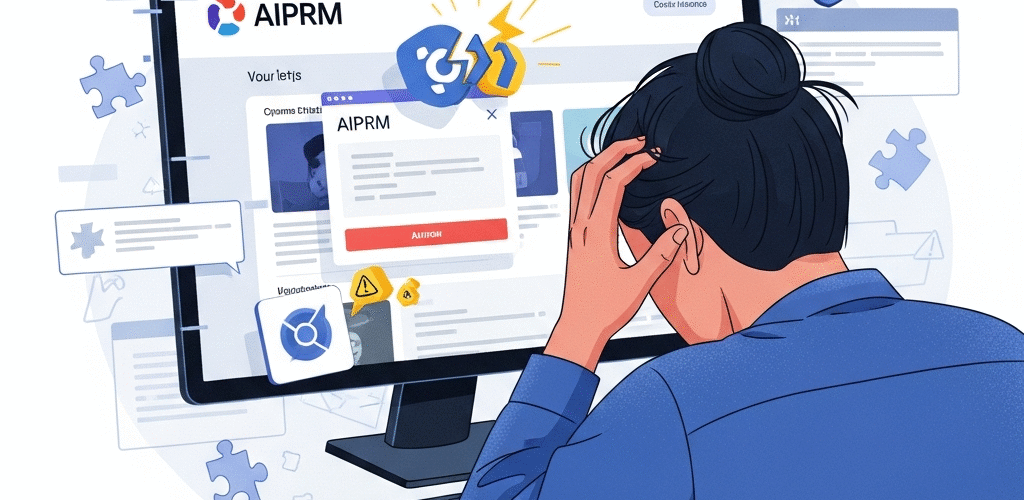
How Chrome Extensions Can Break AIPRM (And How to Fix It)
Ever had your AIPRM tool suddenly stop working? You’re not alone. It’s one of the most common problems users face. Everything worked fine yesterday, but today the layout’s off, templates are missing, or it just doesn’t show up at all. Frustrating, right?
Before you start pulling your hair out or blaming AIPRM itself, there’s one sneaky culprit you should consider first: Chrome extensions.
In this guide, we’ll break down why Chrome extensions can mess with AIPRM, how to identify the problem, and most importantly—how to fix it.
What Is AIPRM Anyway?
If you’re new here, you might be wondering: what exactly is AIPRM? In simple terms, AIPRM is a powerful extension that adds templates directly to tools like ChatGPT, streamlining your writing, SEO, marketing, and productivity tasks. It offers:
- Prebuilt templates for common tasks
- One-click access to SEO prompts, marketing advice, sales scripts, and more
- Custom profile features like “Favorites”, “History”, and “Lists”
It’s incredibly helpful for content creators, digital marketers, and AI enthusiasts. When it works—it’s a dream. But when it doesn’t? That’s where the trouble begins.
Why Chrome Extensions Might Be the Problem
Did you know that not all Chrome extensions play nicely together? It’s like trying to fit too many ingredients into a blender. Some will mix well, and others… make a mess.
Chrome extensions are tiny programs that change how your browser works. They can add features, block ads, or track analytics. But since they all act on the same webpages, it’s common for them to get in each other’s way—especially when one tries to control or alter pages that another extension is designed for. That’s exactly how one of them can end up breaking AIPRM.
Real-life example? Let’s say you have an ad-blocker running alongside AIPRM. That ad-blocker might mistakenly block style files or scripts that AIPRM relies on to work. The result? AIPRM looks broken—or worse, stops working altogether.
Common Symptoms of a Broken AIPRM
If you’re not sure whether a Chrome extension is the culprit, check if you’re experiencing any of the following:
- Templates not loading
- Prompt area disappears or moves
- AIPRM menus completely vanishing
- Weird layouts or styling problems
- Buttons no longer respond
Sound familiar? Then you’re likely dealing with a Chrome extension conflict.
How to Identify the Chrome Extension That’s Breaking AIPRM
There’s no magical solution—yet. But here’s a really straightforward step-by-step you can follow to hunt down the problem extension:
- Open a new Incognito Window in Chrome by pressing Ctrl + Shift + N (Windows) or Cmd + Shift + N (Mac).
- Enable AIPRM manually for Incognito mode:
- Go to
chrome://extensions/ - Find AIPRM
- Click “Details”
- Turn on “Allow in Incognito”
- Go to
- Now open ChatGPT in Incognito and see if AIPRM works properly.
If AIPRM works in Incognito, then YES—something in your regular Chrome setup is interfering.
How to Fix AIPRM When an Extension Breaks It
Option 1: Disable Extensions One by One
This is manual but highly effective. Here’s how:
- Go to
chrome://extensions/ - Start disabling extensions one by one
- Reload the ChatGPT page after each extension you disable
- When AIPRM starts working again—you’ve found the troublemaker!
Tip: Start by disabling extensions that change webpages a lot—like ad blockers, privacy tools, AI-related tools, accessibility tools, etc.
Option 2: Use Another Browser
If you’re in a rush, try using another Chromium-based browser like Brave, Microsoft Edge, or Opera. Install only AIPRM there and test if it’s working. If it is, you’ve confirmed the issue is with another Chrome extension.
Option 3: Create a Clean Chrome Profile
Another way is creating a new Chrome profile just for productivity or AI tools:
- Click your profile icon (top right corner of browser)
- Select “Add” and create a new user
- Install AIPRM there and avoid installing additional extensions unless necessary
Known Extension Conflicts with AIPRM
Some Chrome extensions are frequent offenders. Here’s a list of ones that have been reported to cause issues with AIPRM:
- ChatGPT Prompt Genius
- WebChatGPT
- Adblock Plus
- Enhanced ChatGPT
- Promptheus
- Any extension that modifies ChatGPT’s layout or interface
Note: These extensions aren’t necessarily “bad.” They just don’t play nice with AIPRM. If they’re not essential to your workflow, consider removing or disabling them while using AIPRM.
Best Practices to Keep AIPRM Running Smoothly
Want to make sure AIPRM doesn’t start acting funky again? Follow these tips:
- Limit unnecessary extensions: Only keep what you truly use
- Avoid stacking multiple AI extensions together
- Regularly update Chrome and AIPRM to the latest versions
- Use profiles: Separate work and personal browser profiles can help isolate interference
Still Stuck? Reach Out to AIPRM Support
If you’ve tried everything and AIPRM still doesn’t work, don’t worry—we’re here to help. Our customer support team is quick, friendly, and ready to troubleshoot with you.
Start a conversation now by clicking below.
Final Thoughts: Don’t Let Extensions Break Your Flow
Chrome extensions can be a blessing—or a curse. While they add powerful features to your browsing experience, too many of them working on the same page can lead to chaos. If your AIPRM extension isn’t working correctly, there’s a good chance something else in your browser is to blame.
Thankfully, the solution is simple: isolate the issue, disable the conflicting extension, and get back to productivity in no time.
Remember—AIPRM is here to make your life easier. Don’t let a stubborn extension get in the way 🚀
Upgrade Your Workflow With AIPRM Pro
Want even more out of AIPRM? Check out our premium version to unlock features like:
- Unlimited template access
- Advanced filters and search
- Professional prompt history and team collaboration
Ready to supercharge your productivity?
Keep your browser clean, your tools sharp, and your creativity flowing!
Found this helpful? Share it with your team or on social media!